Whether you’re new to macOS or a seasoned MacBook user, keyboard shortcuts can seriously level up your productivity. From switching apps in a flash to snapping screenshots, the right shortcuts can save time, reduce clicks, and keep your workflow smooth. In this blog, we’ll cover the top 15 MacBook shortcuts every user should know—so you can work smarter, not harder.
What are Modifier Keys?

On a MacBook, modifier keys are special keys you hold while pressing another key to perform shortcuts, commands, or special functions. They play a central role in Mac keyboard shortcuts across macOS.
Modifier keys like Control/Ctrl(⌃) and Command/Cmd(⌘) to carry out some actions on a Mac are combined with other letters or digits.
Browse a wide range of pre-owned computers and laptops on OLX
Here are the main modifier keys you’ll use:
- Command (⌘) – Equivalent to Ctrl on Windows
- Control (⌃) – Used for additional functions and right-click options
- Option (⌥) – For alternate characters and shortcuts
- Shift (⇧) – For capitalization and extending selections
- Fn (🌐) – Function key, often paired with shortcuts or globe for emoji
15 Best Shortcuts for Mac
Here is a list of essential shortcuts for Mac keyboard mastery, the ones you’ll use all the time, no matter what application you’re using.
1. Cut(⌘ + X), Copy(⌘ + C) , Paste (⌘ + V)

Keyboard shortcuts are an easy way to copy, cut, and paste. These basic yet best shortcuts for Mac often work in most browsers and programs, including Google Chrome, Safari, Microsoft Word, Google Docs, and others.
Here is how to use them:-
- Hold down the left-click button on your mouse and move the cursor over the text or image you wish to copy. Then, release the button to keep the text or image highlighted.
- On the Macbook keyboard, press Command ⌘ , and C at the same time to copy.
- To delete text or images from their original location, use Command ⌘ and X at the same time.
- To paste, press ⌘ and V together on the keyboard.
2. Undo(⌘ + Z), Redo(⌘ + Shift + Z)
You may undo recent modifications to a document and redo them if you change your mind. These two macbook shortcuts are also used more frequently.
- Open a document, make any changes, and then execute one of the following, if needed:
- You can Undo the last action. Choose Edit > Undo (from the Edit menu at the top of your screen) or use the keyboard shortcut Command-Z.
- Repeat the previous action you undid: Select Edit > Redo, or press Command-Shift-Z.
Buy a second-hand MacBook in India
3. ⌘ + A – Select all

The “keyboard shortcut for select all” is a key combination that allows you to highlight or select all of the content in a specific document or field. Depending on the context, this may include text, files, or other selectable elements.
- The shortcut varies slightly among operating systems and programs, but it generally follows the same pattern.
- For Mac users, the “select all” shortcut is simple: Shortcut: Command (⌘) + A.
- When used in combination with other MacBook shortcuts, the “select all” shortcut becomes even more effective. To copy or cut all selected text, use Command (⌘) + C (Mac) or Command (⌘) + X (Mac), respectively.
4. ⌘ + S – Save
The ⌘ + S shortcut is essential for preserving your work across most Mac applications. Pressing it saves the current file, document, or project without needing to use the menu bar.
- Prevents data loss by saving progress regularly
- Works in apps like Pages, Word, Photoshop, Excel, and more
- Instantly updates the existing file or prompts you to name a new one if it hasn’t been saved before
- Especially useful when working on large or important projects
5. ⌘ + P – Print
To print with your keyboard, use the keyboard shortcut ⌘ + P (Mac). With most devices, this immediately opens the Print window. You may choose your printer, configure your preferences, and more.
- Locate the file or page you wish to print. You can print almost any document, image, or web page from your Macbook.
- Press ⌘ Command+P (Mac) . This will bring up the print settings for your current file or web page.
- Select your printer from the dropdown menu. Select the printer you wish to use from the drop-down option at the top.
- Hit ↵ Enter or ⏎ Return on your keyboard. This will process and transmit your print job to the specified printer.
Buy a second-hand MacBook in Delhi NCR from olx
6. ⌘ + Option + Esc – Force quit an app
If an app becomes unresponsive on your Mac, you can force it to close using the shortcut ⌘ + Option + Esc. This will open the Force Quit Applications window.
- Scroll through the list and select the app that isn’t responding.
- Click Force Quit in the bottom-right corner.
- Confirm the action if prompted. The app will close immediately, allowing you to relaunch it or continue working without a frozen screen.
7. ⌘ + Q – Quit the active app, ⌘ + H – Hide the active window
To completely close any app you’re using, press ⌘ + Q.
- This command quits the entire application, not just the current window.
- Make sure you save your work before using this shortcut.
Press ⌘ + H to hide the currently active window.
- The app remains running in the background, but its window disappears from view.
- To bring it back, click the app icon in the Dock or use ⌘ + Tab to switch back to it.
8. ⌘ + Tab – Switch between open apps
Easily switch from one open app to another by holding ⌘ and pressing Tab.
- A horizontal app switcher will appear on the screen.
- Continue to press Tab (while holding ⌘) to cycle through open applications.
- Release the keys when the desired app is highlighted to bring it to the foreground.
9. ⌘ + W – Close the current window or tab
To close the current tab in a browser or the active window in an app, press ⌘ + W.
- This shortcut works in most Mac applications including Safari, Finder, and document editors.
- Note that it only closes the window or tab, not the entire app. The app remains active unless you quit it using ⌘ + Q.
Buy a second-hand MacBook in Chennai
10. ⌘ + Delete – Move selected file to Trash, ⌘ + Shift + Delete – Empty Trash
To quickly delete a file or folder, select it and press ⌘ + Delete.
- The item will be moved to the Trash instantly without confirmation.
- You can still recover the file from the Trash if needed—just open Trash and drag it back out.
To permanently remove all items from your Trash, press ⌘ + Shift + Delete.
- A confirmation prompt may appear, asking if you want to proceed.
- Click Empty Trash to delete everything and free up disk space on your Mac.
11. ⌘ + Space – Spotlight search
Open Spotlight Search instantly by pressing ⌘ + Space
- A search bar will appear in the center of your screen.
- Type to search files, apps, emails, definitions, or even perform quick calculations—all from one place.
12. ⌘ + Shift + 3 – Full-screen screenshot, ⌘ + Shift + 4 – Select area to screenshot
To take a screenshot of your entire screen, press ⌘ + Shift + 3.
- The screenshot will automatically save to your desktop as a .png file.
- You’ll also see a thumbnail preview in the corner for quick edits or sharing.
13. Text Editing: ⌘ + Left/Right Arrow – Jump to beginning/end of a line
Capture a specific portion of your screen by pressing ⌘ + Shift + 4.
- Your cursor will change to a crosshair. Click and drag to select the area you want to capture.
- Release the mouse to take the shot, which will be saved to your desktop.
While editing text, press ⌘ + Left Arrow to move the cursor to the start of the current line.
- Use ⌘ + Right Arrow to jump to the end of the line.
- This shortcut helps you navigate faster while working in documents, emails, or code.
Buy a second-hand MacBook in Bengaluru
14. ⌘ + Delete – Delete entire line
Place your cursor at the end of a line and press ⌘ + Delete to remove the entire line at once.
- This is useful for quickly clearing text without selecting it manually.
- Note: Some apps may require using Fn + ⌘ + Delete depending on the keyboard layout.
15. Control + Command + Power button
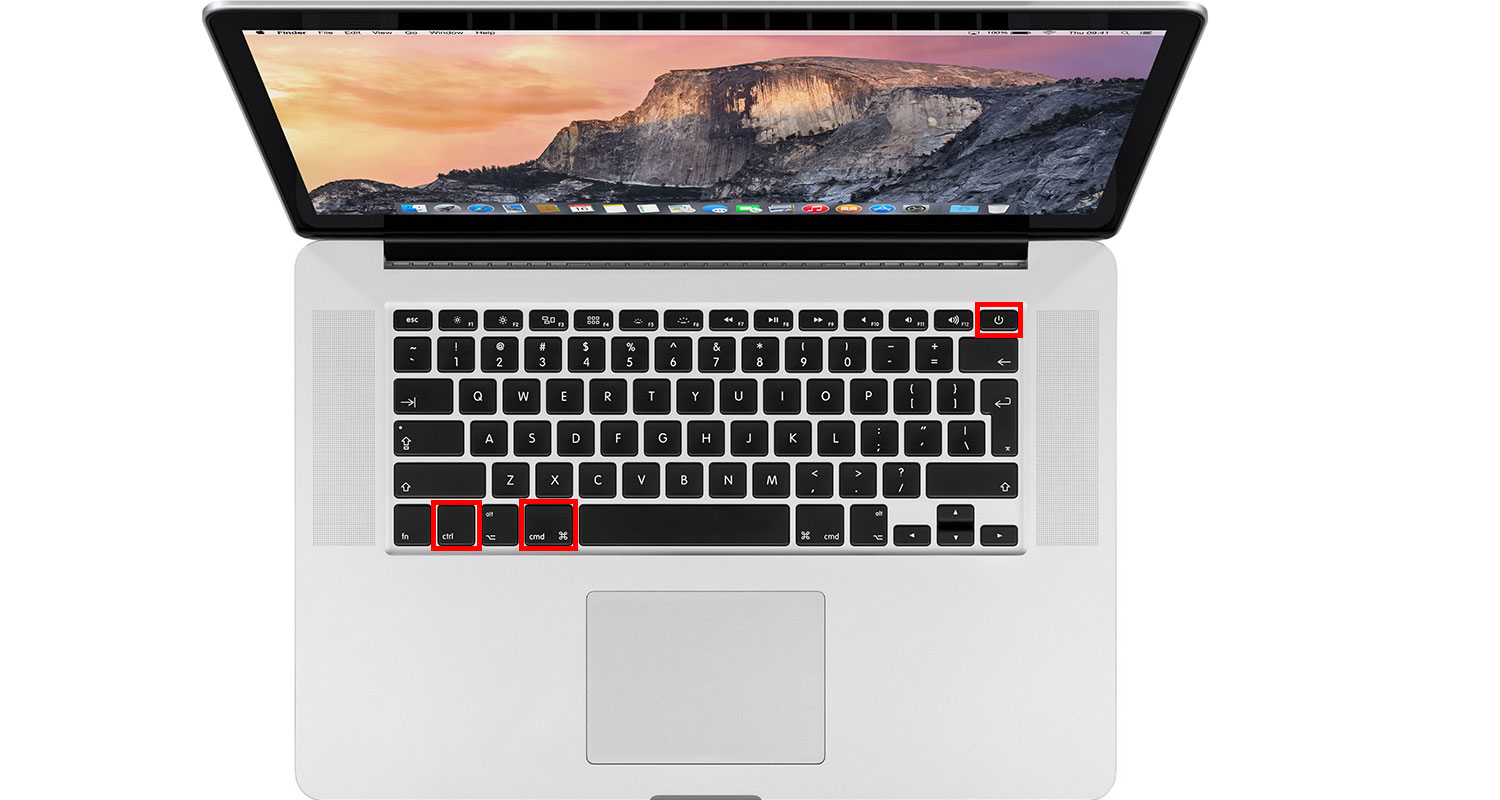
If your Mac becomes completely unresponsive, press the Control + Command + Power button to force a restart.
- All unsaved work will be lost, so use this only as a last resort.
- Your Mac will shut down and restart immediately, clearing any system-level freezes or hangs.
Conclusion
Learning essential MacBook shortcut keys can truly transform the way you work, making tasks faster, smoother, and more intuitive. Whether you’re navigating apps, editing text, taking screenshots, or performing system-level actions, these time-saving commands help you get more done without constantly switching between keyboard and mouse.
We’ve rounded up the most useful Mac shortcuts—master them once, and they’ll stick with you for good.
Frequently Asked Questions
How can I permanently delete items on Mac using shortcuts?
Use ⌘ + Delete to move files to Trash and ⌘ + Shift + Delete to empty the Trash permanently.
What’s the shortcut to undo and redo actions?
Press ⌘ + Z to undo and ⌘ + Shift + Z to redo actions in most editing apps.
Can I use shortcuts to navigate text quickly?
Yes, use ⌘ + Left Arrow to jump to the beginning of a line and ⌘ + Right Arrow to go to the end.
What is Spotlight search and how do I open it?
Spotlight is a built-in Mac search tool. Open it with ⌘ + Space to find files, apps, or perform quick calculations.
What should I do if my Mac freezes completely?
Press Control + Command + Power button to force restart your Mac. This should be used only when other methods don’t work.
Also Read: